Managing Timezones in Your Trip
If you're travelling to different countries, or even within the same country, you'll more than likely come across timezone changes. When adding activities, either manually or via our email automation, the timezone should be picked up automatically for you based on the location of the activity.
When manually setting a time for an activity, you'll see the timezone at the bottom of the screen.
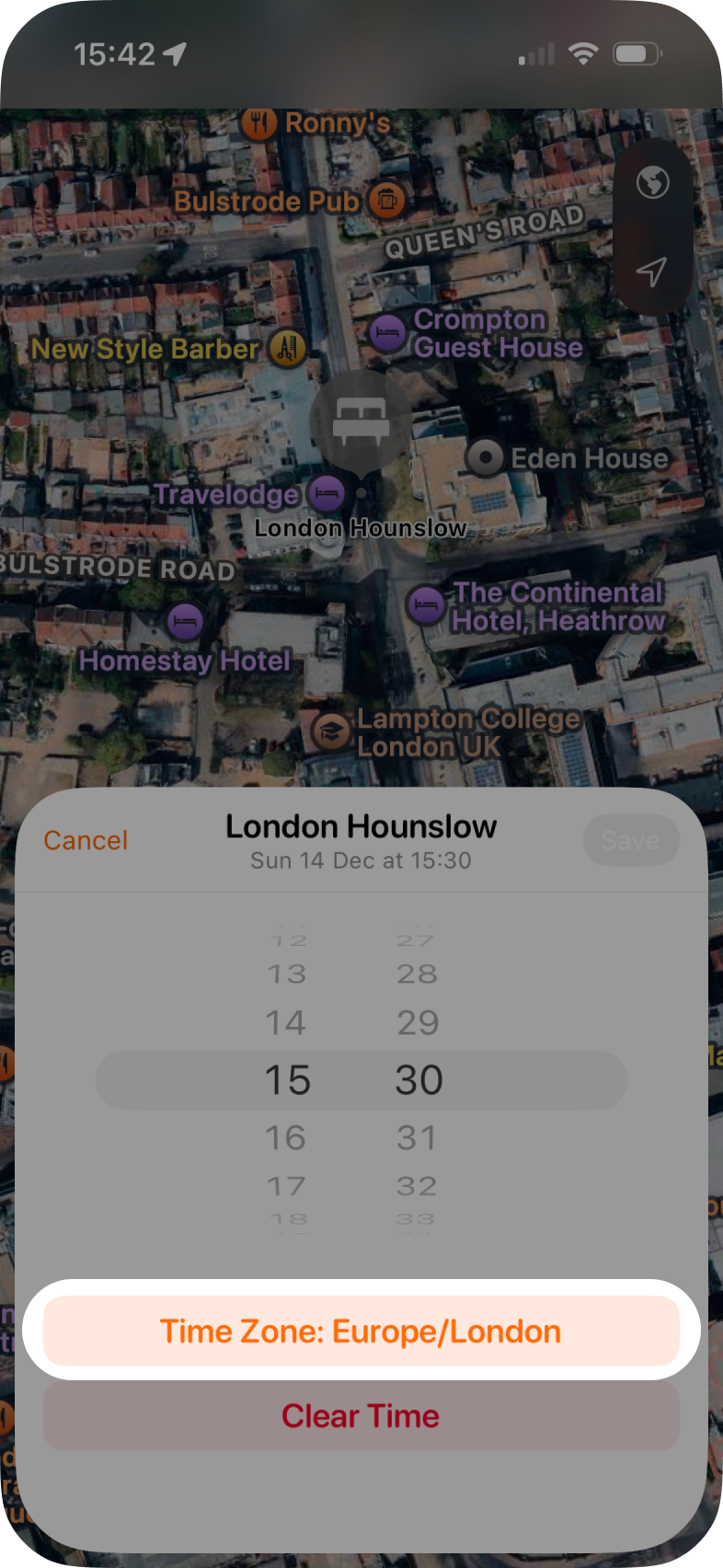
Timezone Differences In Activities.
When viewing an activity that has a timezone change, you'll see Time Zone Difference field will show the change; in the example below there's a 5 hour difference going backwards between London and New York.
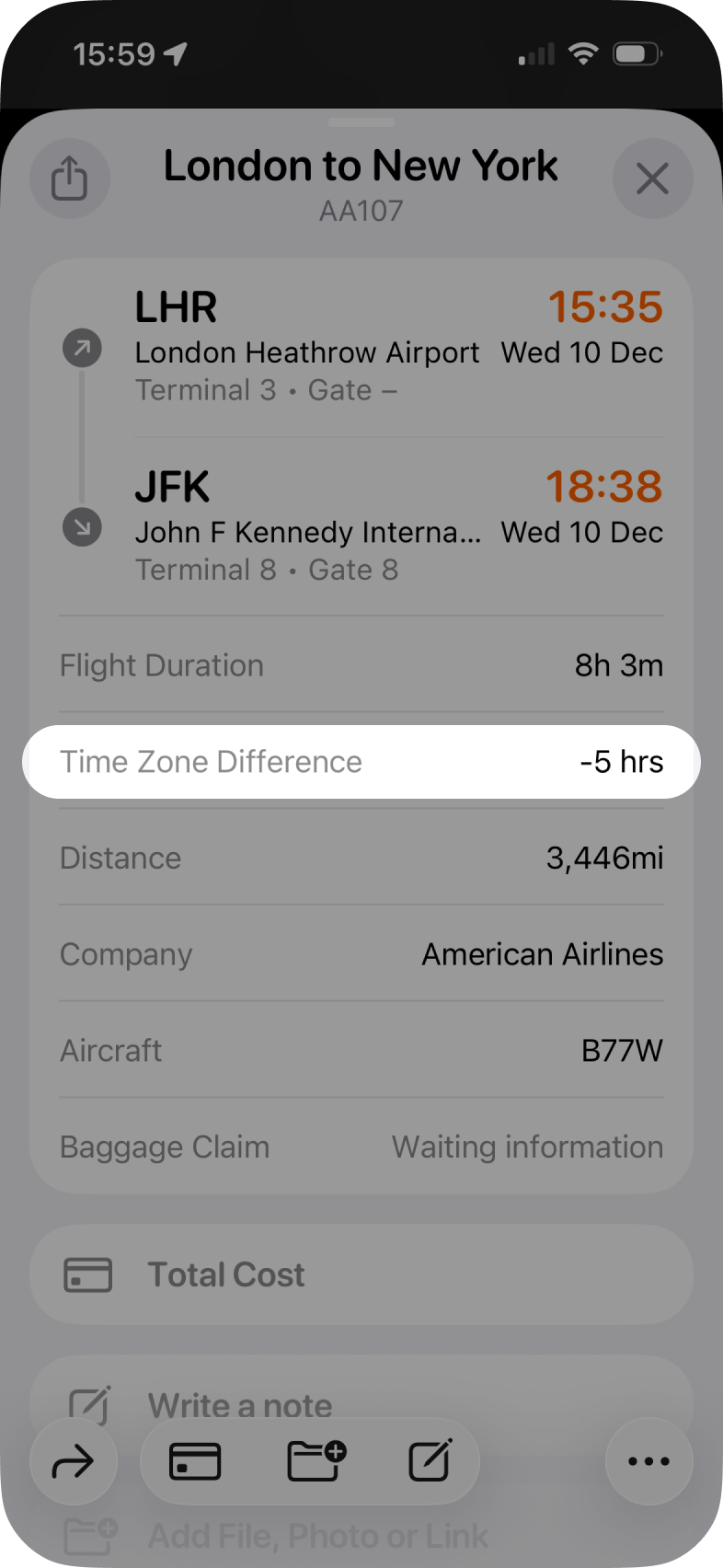
See Timezone Changes in Your Itinerary
Tripsy PRO Feature: Timezone changes are only available if you're subscribed to Tripsy PRO, or purchased our Lifetime PRO unlock, you can find out more about Tripsy PRO here.
As well as seeing timezone changes within an activity's details, you'll also see an item in your itinerary to show the timezone change along with the hours difference and in what direction the change will happen.
Using our example from above, you'll see a 5 hour difference going backwards once our example flight arrives in New York:
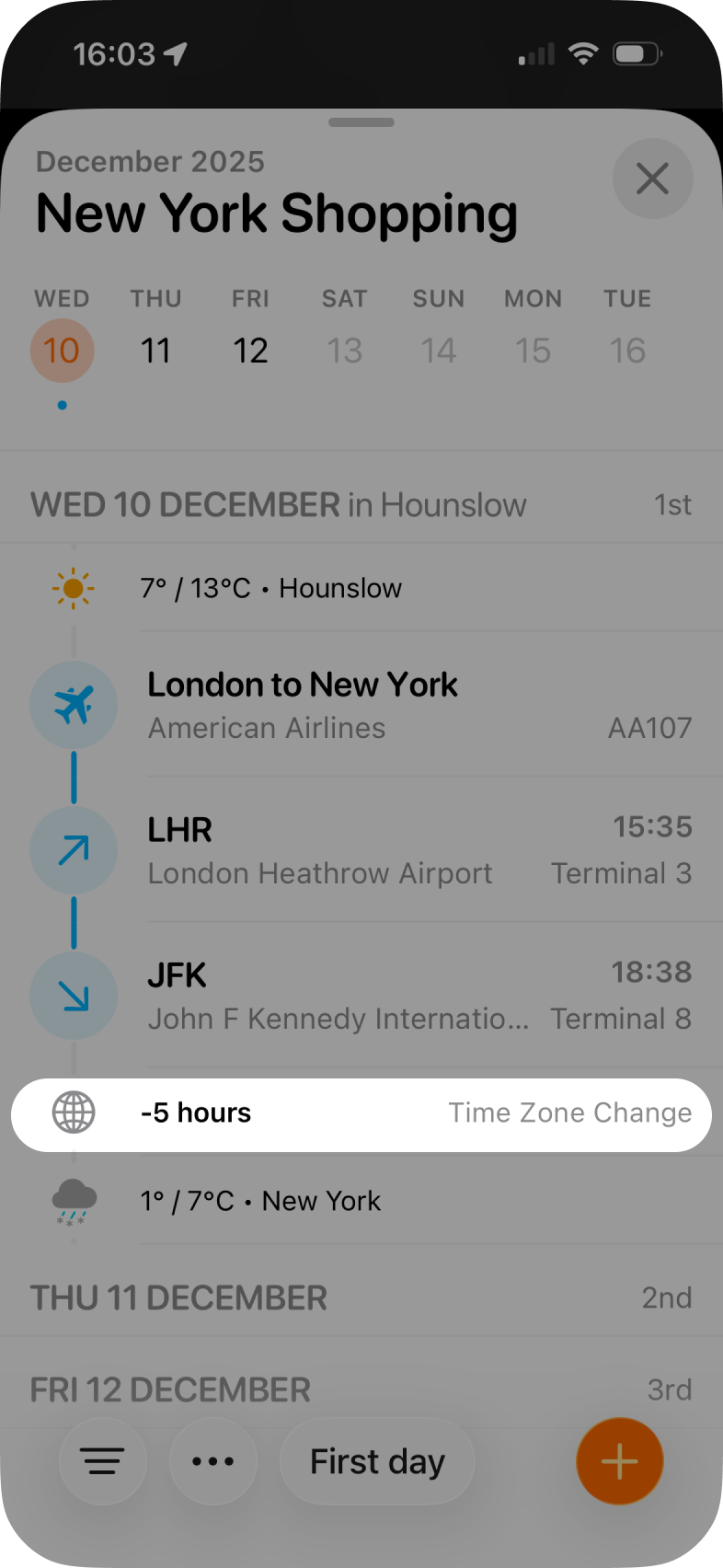
If you've assigned guests to a particular activity where a timezone change takes place, you'll also see the profile icons for the guests for whom the timezone change is taking place.