Can I Assign Activities to Specific Guests?
If you've shared your trip with others, you may want to associate particular activities on that trip with specific people. Tripsy has you covered, you can assign any activity in your trip to any number of the guests added to that trip.
For example, let's say you have a family gathering and the trip is shared with everyone attending, and you have the various flights recorded in Tripsy but one flight belongs to one part of the family and the other to another part of the family, and some people may not be flying at all.
By default, all activities are not assigned to specific people and instead are assigned to everyone added to the trip, and for guests marked as travelling will be available on their calendar feed if they're using Tripsy PRO.
Assigning Guests When Saving an Activity
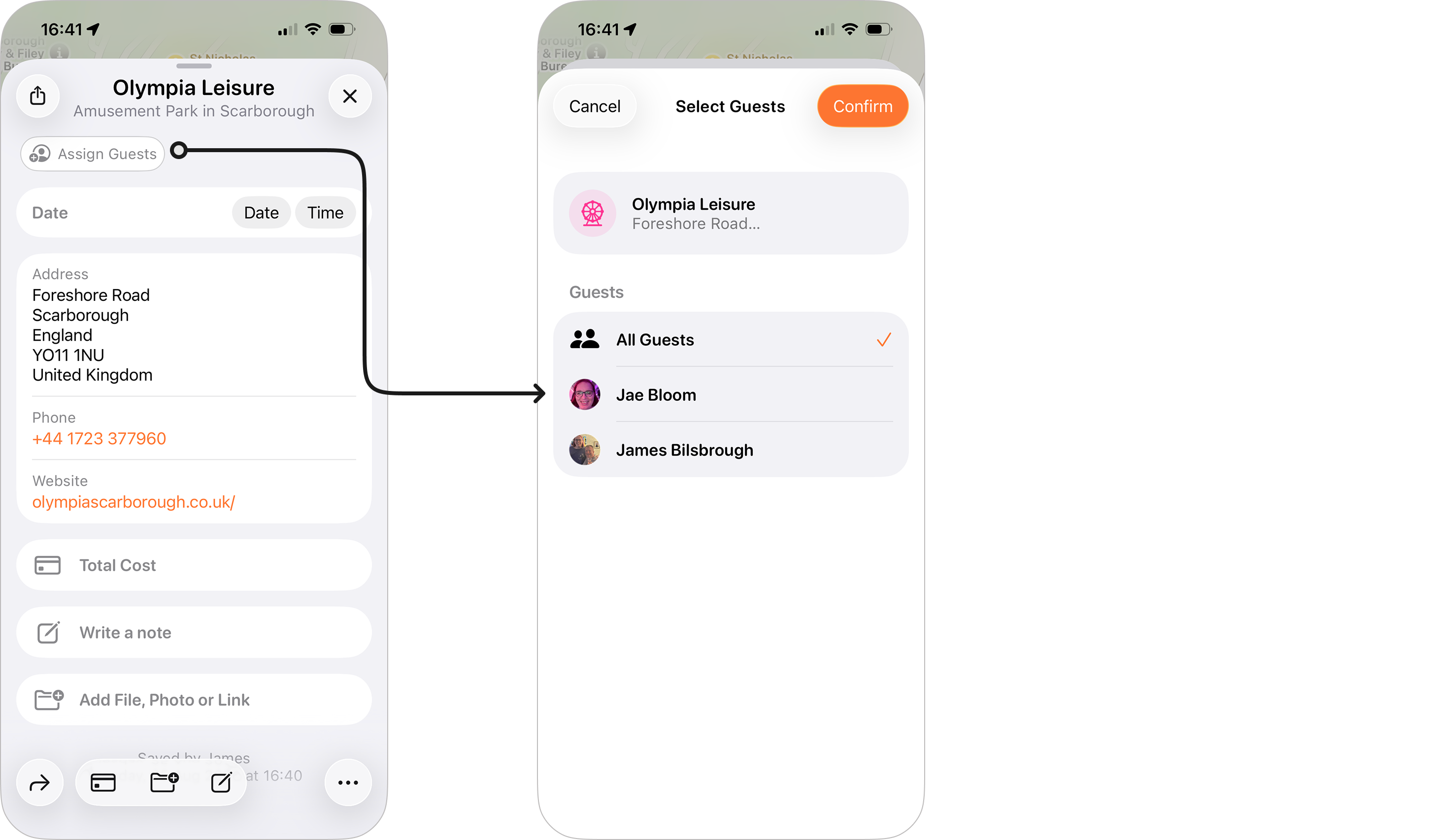
As of Tripsy 3.9, you can assign guests to an activity when you adding this to your trip, you'll see the option to Assign Guests just below the activity's title and location as you can see here:
Assigning Guests to Existing Activities
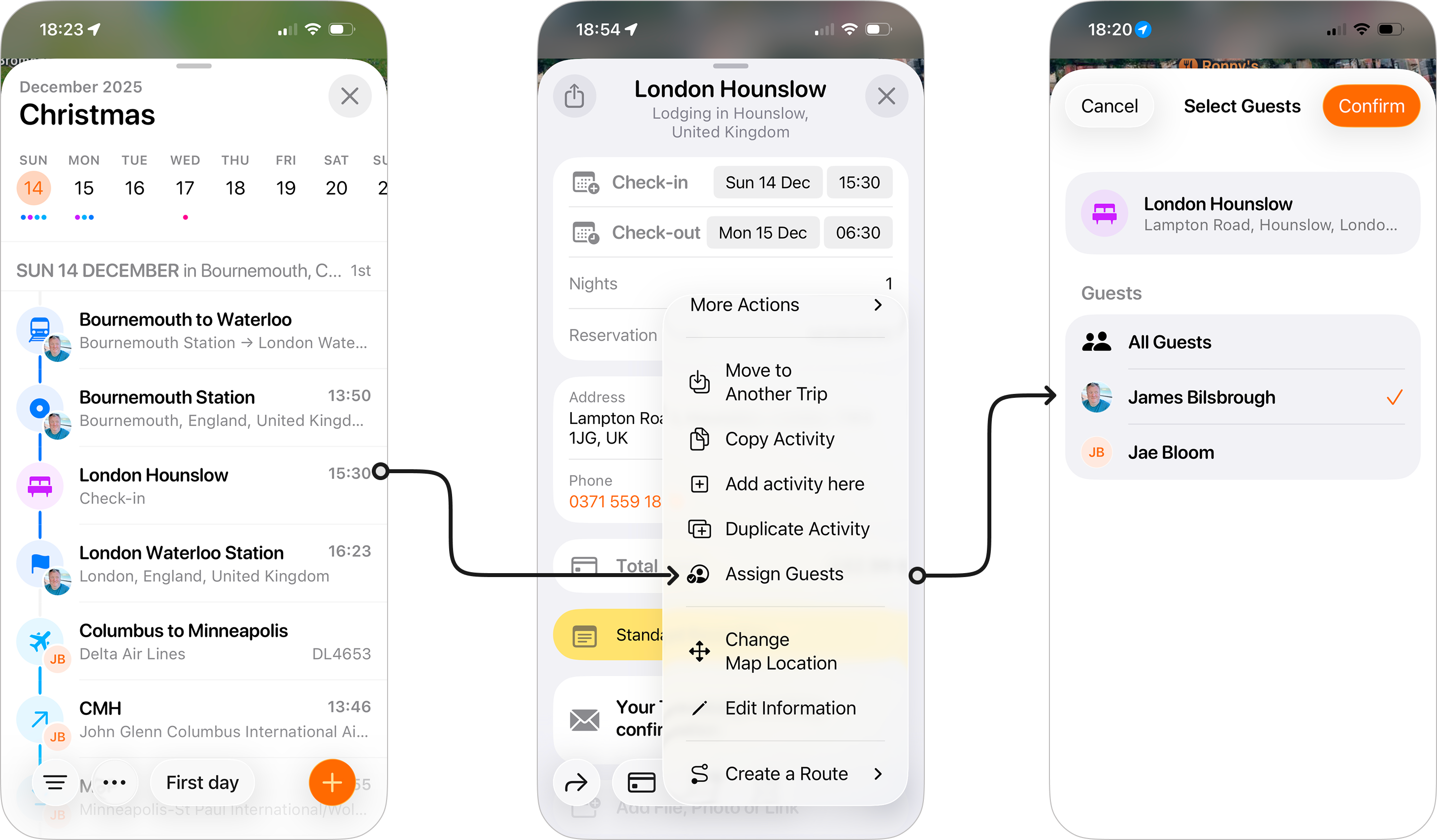
To assign an activity to specific guests:
- Open the trip in question
- Tap on View All Days on the Itinerary widget.
- Tap the activity you want to assign.
- Tap on the three dots at the bottom-right of the activity and choose Assign Guests.
- You can then check one or more guests to assign them to the activity and tap Confirm when done.
TIP: You can also tap and hold on the activity from the itinerary and choose Assign Guests
How Assigning Guests Works
Once you assign an activity to a guest only the assigned guests will see the following:
- The activity in question in the Itinerary widget within the trip's overview.
- The activity in question on their next activity widget within the trip overview and any widgets added to your home screen or lock screen on iPhone, iPad, and Mac
- The activity in question in their calendar feed, if applicable.
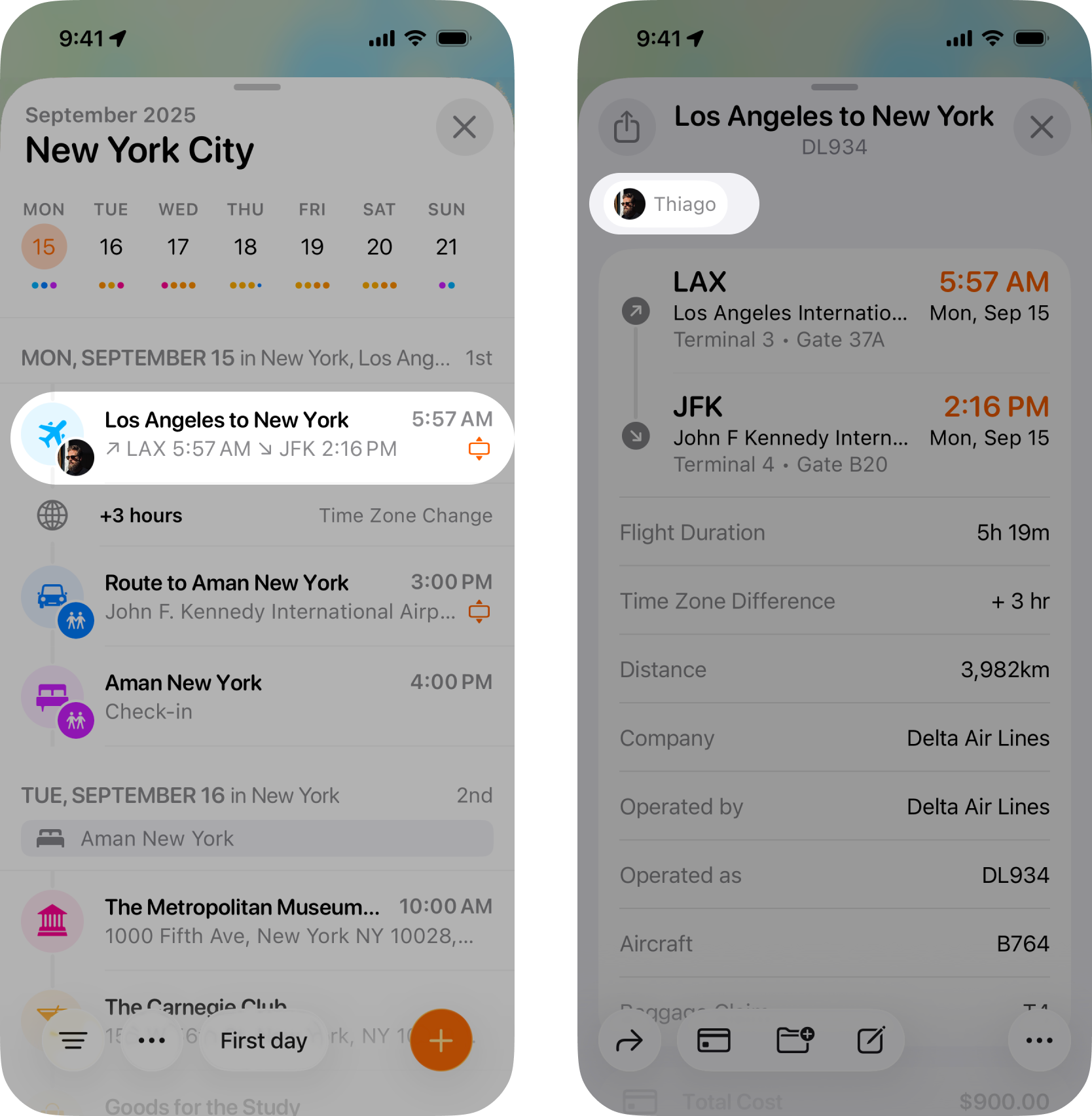
All guests will see every activity within the itinerary itself, regardless of it they're assigned or not. However, cnce guests are assigned to an activity their profile icon (if they've set one) or just initials will be shown on activities they're assigned to when viewing the itinerary view, and when viewing the activity you'll see the profile icon and their name.
Removing Guests from Activities
If you need to un-assign a guest form a particular activity, such as if they're no longer taking part in a tour, or can't make the dinner reservations, you just need to repeat the steps to assign the guest as above and then tap on their name to remove the checkmark.
If they were the only assigned guest, this will default the activity back to All Guests.
Frequently Asked Questions
- Does assigning an activity to a specific guest prevent other guests from being able to see this in the itinerary?
- No, all guests on a trip can see every activity within a trip. Assigning guests is currently designed for organization rather than privacy. If you need to hide particularly activities, you'll want to create a separate trip for those that only the relevant guests have access to.
- Can I assign expenses to specific guests, or split expenses across guests?
- Not at the moment, but this is something we've had requests for and is on our list of features to consider for the future.
- Can I add non-Tripsy users as guests to activities?
- Not at this time, but this is something that has been requested and is on our list of features to consider for the future.