Can I Add Activities from Other Map Apps?
Absolutely, as long as the map app in question supports sharing location data via Apple's Share Sheet, you can send that location into Tripsy to create an activity. This is useful when you're using different apps to plan your trip, or just prefer the experience in a particular app.
The process to share a trip will vary from app to app, but in general you should be looking for the standard share icon (a square with an upwards pointing arrow).
Example: Google Maps
- Find the location you want to share, in this example we're using the Science Museum in London, UK.
- Tap the share icon, and you'll see Google's share page.
- Tap Share this Place and you'll see the standard share sheet
- Select Tripsy from the list on the second row (you may have to scroll to the right to see this)
- You'll then see the Location popup where you can:
- Select the trip the activity is being added to, by default this will be your next upcoming trip, based on the current date.
- Change the category for the activity, we'll try and pick this up based on the data provided by the app sharing, in this case Google Maps.
- Add a start date and time, or leave this blank if you just want to add it to your trip to be planned later.
- You can also add any booking reference or cost, if you already have these.
- Tap Save when you're done and the location will be added as an activity to your selected trip.

Adding Tripsy to Your Favorite Apps for Sharing
If you don't see Tripsy in your list of apps to share to it's either not enabled for sharing or isn't in your favorites and so you'd have to scroll all the way to the right and tap More to get to Tripsy.
You can add any app that has a share extension to your favorites for quicker access to do this.
- Go to share an activity as above and scroll until you see More and tap this.
- Tap Edit at the top-right of the list.
- Find Tripsy in the list and tap the green + to add this to your favorite apps, making sure the enabled toggle on the right is turned on.
- If you wish, you can also use the three lines tot the right of each app to move their order, with items at the top being shown at the left of your share sheet.
- Once you're done, tap the blue check and your chosen favorites and positions will be saved.

A Note for macOS Users
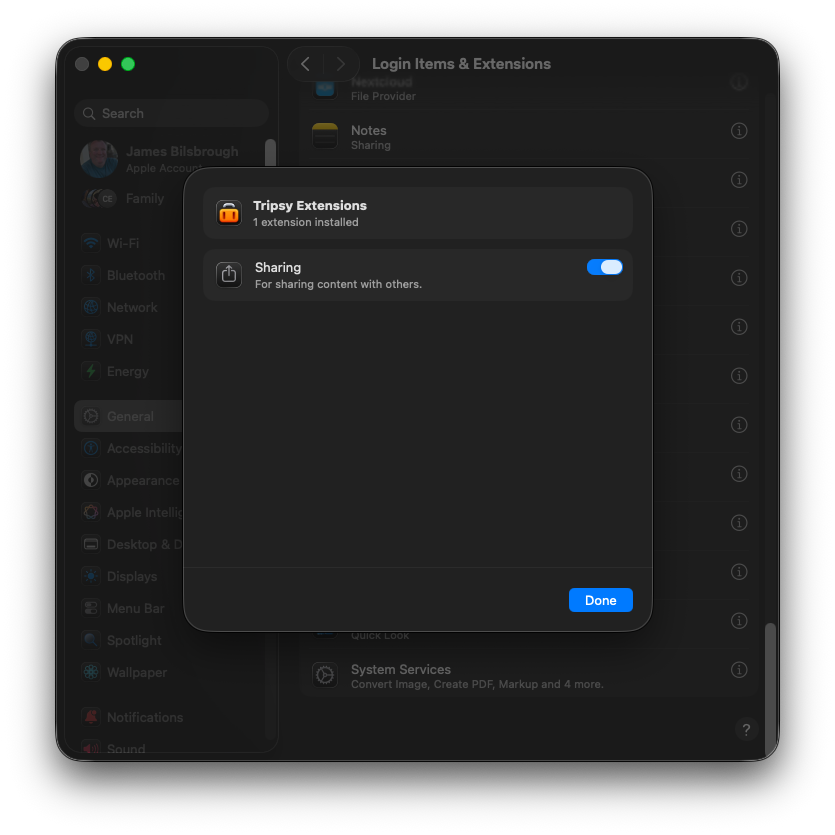
Just like on iOS, there is a Tripsy share extension available and the process for enabling this is as such:
- Open System Settings and go to General > Login Items & Extensions
- Scroll down to Extensions and in the By App tab scroll down until you see Tripsy
- Tap the i and you can then enable the Sharing extension