Creating Other Types of Travel Routes
As of Tripsy 3.9, we've made it really easy to plan your routes for driving, walking, cycling, train journeys, and bus journeys with our new multi-stop routes feature that replaces these types of routes with the new Directions activity type.
However, you may want to add other forms of transport that aren't part of a multi-stop route, such as your car rental, a ferry crossing, or part of a cruise itinerary.
TIP: Need to add a flight, we've got a dedicated guide to adding flights to Tripsy.
Types of Additional Routes
Tripsy supports a range of different route types, and we've tried to be somewhat broad with the definitions to allow for some flexibility. Below is a brief description of each type of route not handled via multi-stop routes and what they may be useful for.
- Train: Any route that uses some form of train for travel, this could be a mainline rail service or a local commuter service. This is best for a train journey that doesn't require any changes along the route.
- Subway: For any underground or similar journeys, e.g. the London Underground or New York Subway.
- Cruise: This is designed for each sea-leg of a cruise from the departure port to arrival port of that particular leg. We're working on something special to make cruise itineraries easier to add.
- Ferry: Great for relatively short-duration voyages, maybe the English Channel crossing, a journey across a lake, or a longer route to places like Santander. You'd typically use this in place of a cruise if you don't have a cabin.
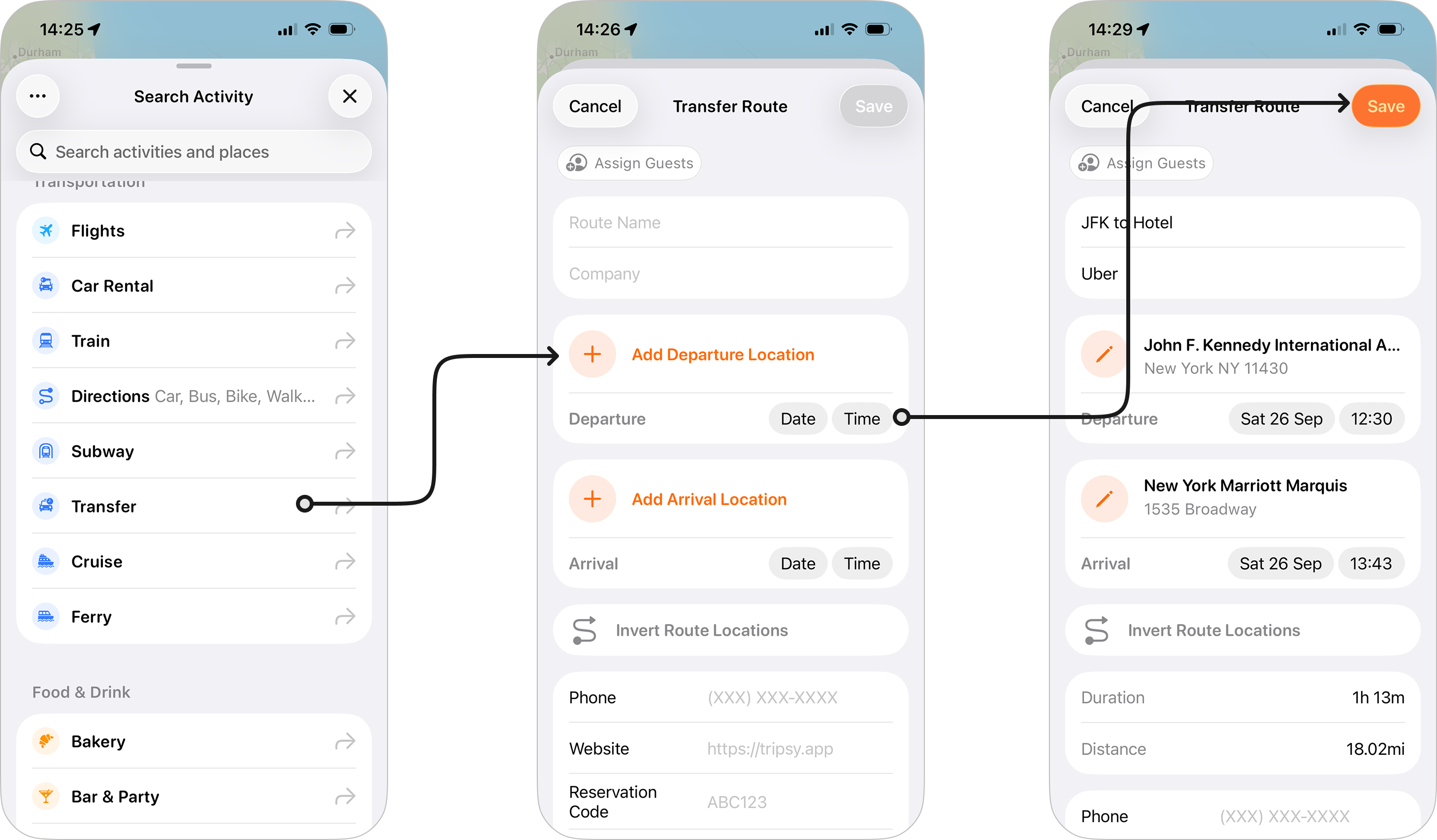
- Transfer: Perfect for things like an airport shuttle, an Uber or Lyft to or from your hotel, or any kind of point-to-point service that's .
- Car Rental: Whilst not technically a travel route in itself, you can add a car rental with the pick-up and drop-off points for the vehicle as well as things like any booking details and associated expenses.
Adding a Travel Route
To add a travel route to your trip:
- Open the relevant trip within Tripsy
- Tap New Activity
- You'll see the various route options available, pick the one that best suits your journey.
- Enter a Route Name to help you identify your journey in your itinerary.
- Depending on the type of route you've chosen, you may see some additional options to fill in if you'd like.
- Tap Add Departure Location (this will show as Station and Port where relevant)
- If you already have activities within your trip, these will show up for you to select.
- Alternatively, you can search by a name or address, and if needed change the Nearby filter to help you find locations.
- Repeat the above for your Arrival Location.
- You can now set a Date and Time for your Departure:
- Depending on your location, and the type of route chosen, Tripsy will get the estimated time for your journey based on the fastest route available from Apple Maps. Currently this works for Car, Motorcycle, Bike, and Bus routes.
- For other routes, and when we can't get the correct duration estimate, you'll set your Date and Time for your Arrival,
TIP: If you need to create a route to an existing activity, we've got a handy Create Route feature as we detail in this guide
Frequently Asked Questions
- Why do certain routes not display the actual map route, only a straight line?
- This very much depends on if we can get the actual route data for the journey in question, there are some limitations on different types of route and even depending on where you're located. We are looking to add more data sources to allow for more accurate routes on the map.
- Can I plan a route with multiple stops?
- Yes! As of Tripsy 3.9 you can now plan multi-stop routes for certain transport types.