Creating Multi-Stop Routes
Want to plan your ideal road-trip with stops along the way at beauty spots and those recommended eateries you have to try, or do you just need plan your route to Wally World in meticulous Clark Griswald level detail? We've got you covered!
As of Tripsy 3.9, you can now create a complete route with multiple stops by adding a new Directions activity, this replaces the options for car, walk, bus, bike, and motorcycle routes in previous versions.
Building Your Route
To add a new multi-stop route, add a new activity to your trip, and choose Directions from under the Transportation group. You may also see this in the shortcuts at the very top of the add activity page, unless you've chosen to remove this by customizing your new activity shortcuts.
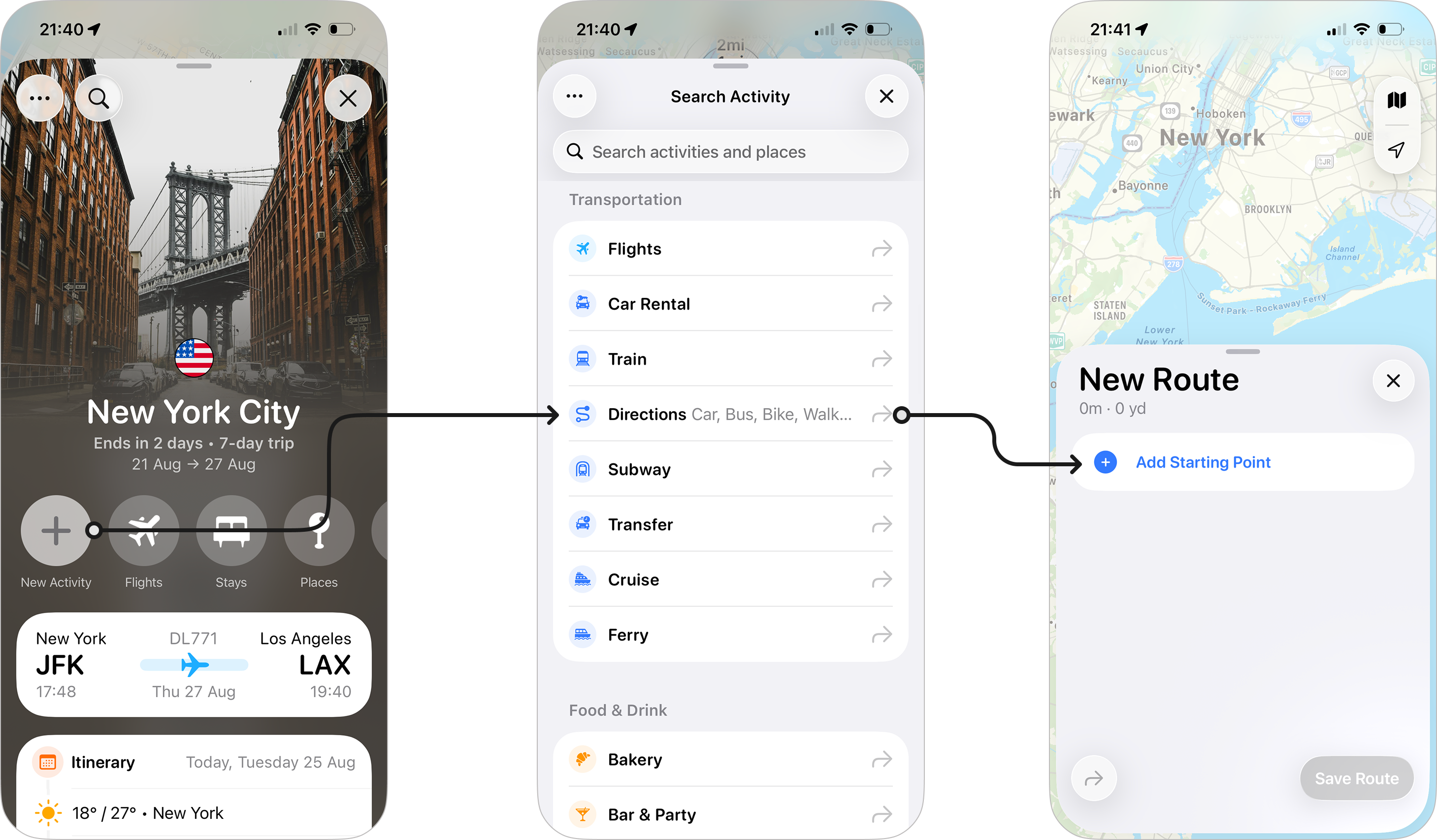
Setting Your Starting Point
When you create a new route, the first thing you'll be asked to do is choose your starting point by tapping Add Starting Point, this will then let you choose a starting point from your saved activities already in the trip, or search for new places to set as your starting point for the route.
You can then set a starting time for your journey, by tapping Add next to Starts and then choosing a date - by default we'll select 9am as your starting time, but tapping on that time will allow you to change this.
Adding Stops to Your Route
Once you've added your starting point, you'll see the Add Stop button, which will allow you to add your next step along the journey in the same way you added your starting point.
Once you add a stop, you'll then see a route suggestion with the estimated distance and travel time to the added stop from your the previous stop (for your first stop, this would be from your starting point) and this will be based on your Route Preferences.
If you'd prefer an alternative transport type, just tap on the drop-down next to the suggested travel method and you can then choose between the available options.
You'll also notice that the starting time for the added stop is based on the estimated journey time to this location from the previous stop and this will be adjusted if you change your method of transport.
The difference with adding a stop is that you can also then tap on the stop in question, and if you tap Set Duration you can set how long you'll be staying at that location. This is very helpful for things like meals, sight-seeing, or any location where you want to stay for a period of time before continuing your journey.
Changing the duration for a stop will also update the route suggestions and starting time of subsequent stops for you.
You can continue to add stops until your journey is complete.
Adding Stops from the Map (iPad and Mac)
With Tripsy 3.9.4, you can now tap on any point of interest on the map view and then tapping the Add button from the place's details. This is really helpful if you want to build a route through an area, or make sure you stop off at a particular point along your journey but maybe can't remember the name of the restaurant.
Changing the Order of Stops
If you decide you want to move some elements of your route around, for example you may decide you want to have lunch before taking in a beauty spot, you can use the handles at the right of each stop to move these up and down the route.
This will re-order the route and recalculate any route suggestions for you automatically.
Saving Your Route
Once you're happy with the stops and timings of your route, just tap Add to Itinerary and both the stops and the routes between them will be added to your itinerary based on the dates and times you choose for each stop.
Frequently Asked Questions
- Once a route is saved to my itinerary, can I go back and change the order?
- No, once the route is added to your itinerary the stop and route suggestions are treated as normal activities and routes as if they were created individually. You can, of course, change timings of your activities and move these around your itinerary, but you will need to also adjust the relevant routes.
- Why aren't all forms of transport included in multi-stop routes, such as cruises?
- For cruises specifically, we're working on something special that we think you'll love. Cruise itineraries are complicated, and include far more than just where the ship is sailing to and from.
- For other forms of transport, only certain types of transport can get route estimations via Apple Maps' APIs (aka MapKit) at this time. We are actively investigating some additional routing options to give a much more complete routing experience, but we don't have a timeframe on when this will be available at this time.