Smart Routes: Suggested Directions Between Activities
Tripsy PRO Feature: Smart Routes require an active subscription to Tripsy PRO or our Lifetime PRO purchase. You can find out more about Tripsy PRO here
Your activities are the heart and soul of your trips, but you still have to travel between them, and then back to your accommodation after that amazing meal out, or that late night party.
If you've ever had the awkward moment of having to pull out your maps app of choice to find your way back to your hotel then we've got you covered!
With Tripsy 3.9, we've added automatically suggested routes for you between different activities, including to and from any hotel stays (or other accommodation) you have saved for the day in question.
How Route Suggestions Appear In Your Itinerary
Smart Route suggestions will appear between activities in your itinerary that have both a start and end time set, activities without a time (even if they have a date set) will not have routes suggested as we won't have a reference as to when you need to arrive for those activities.
Whereas regular routes will appear with a blue icon in a shaded blue circle, any route suggestions will be displayed with a subtle grey icon to show the type of route being suggested (e.g. driving, walking, cycling).
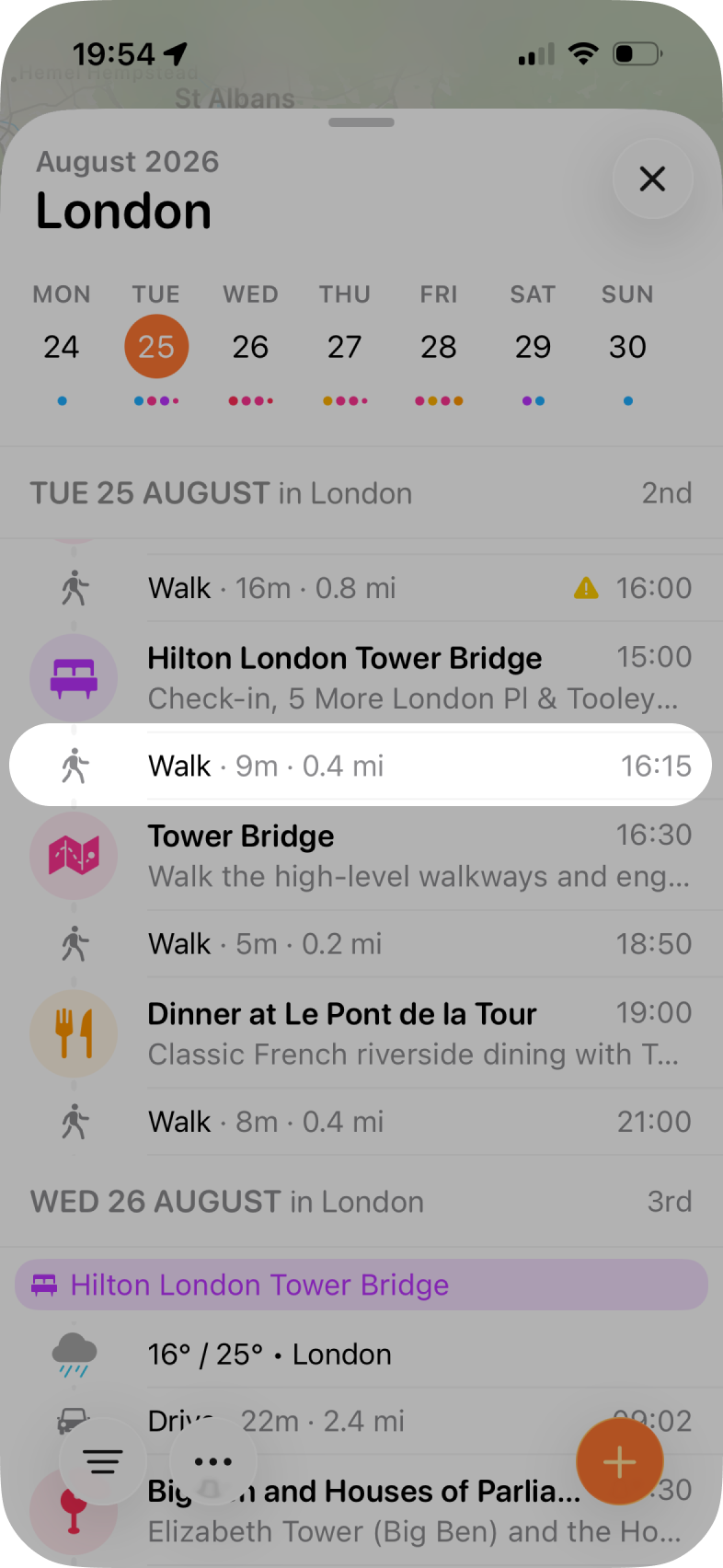
It's important to note that route suggestions are only shown for activities that are either assigned to all guests, or that you are specifically assigned to. Each guest who is marked as travelling will see their own set of route suggestions within their Tripsy itinerary. If you want to have the same route for all your guests, for example a shared airport transfer, please save the route as detailed below.
Your smart route suggestions and route preferences aren't currently saved to your Tripsy account, but they are synced via iCloud to any devices where you're logged into the same iCloud account with.
Viewing and Changing Smart Route Suggestions
If you tap on any suggested route, you'll see the details of the route suggested, including the locations the route is between as well as seeing the suggested route displayed on the map.
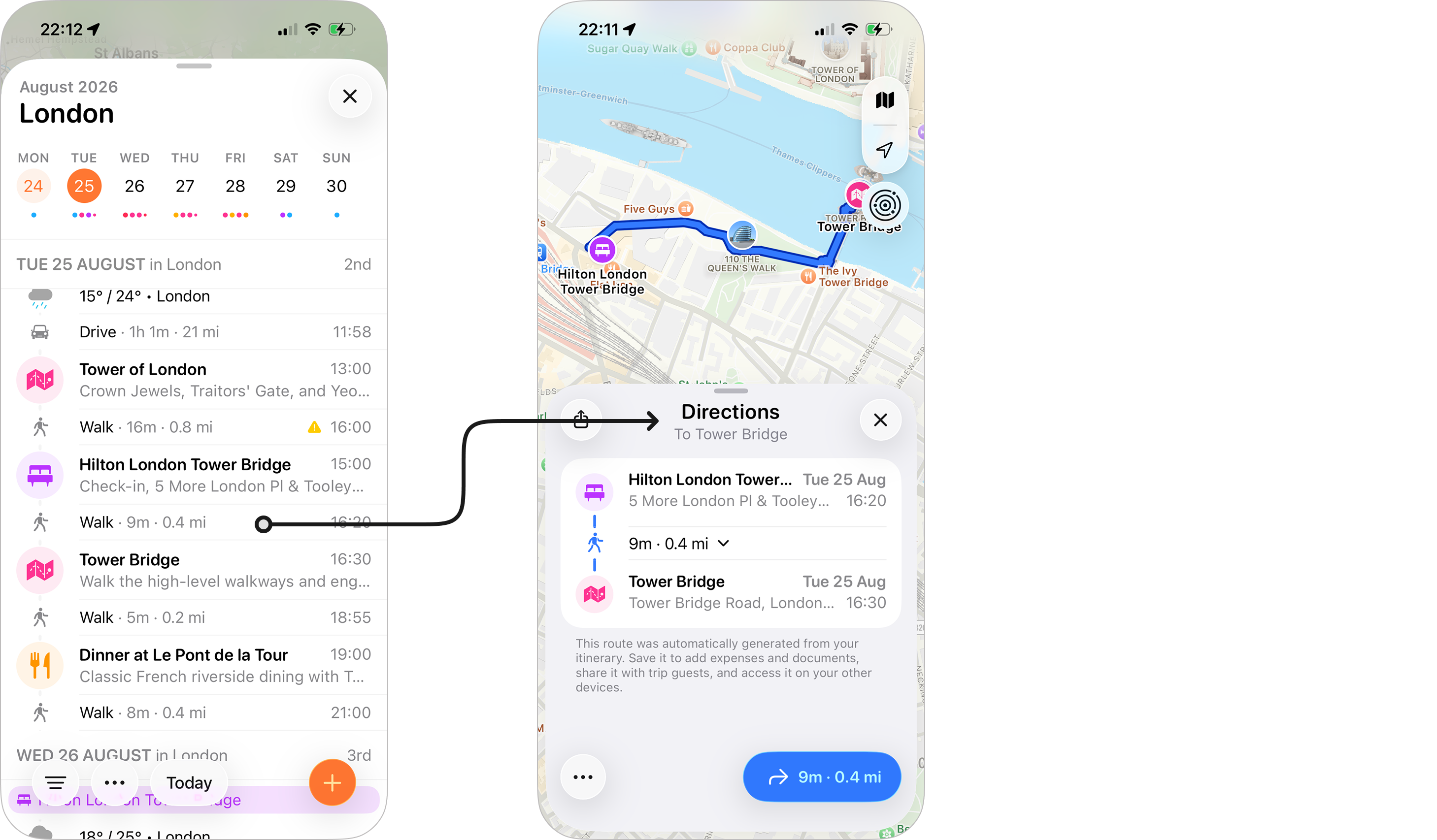
Tapping on the blue directions button at the bottom-right will allow you to open either Apple Maps or Google Maps with the starting and ending locations pre-filled. Of course, you may see different route suggestions and options in both these map apps, Tripsy's directions are based on Apple Maps' first suggestion.
Changing Transport Type
If you want to change the transport type for a particular route suggestion, just tap on the drop down next to the time and distance shown, you'll be then shown the available route options to choose from - these currently are: Walking, Driving, Cycling, Train, Bus, and Motorcycle.
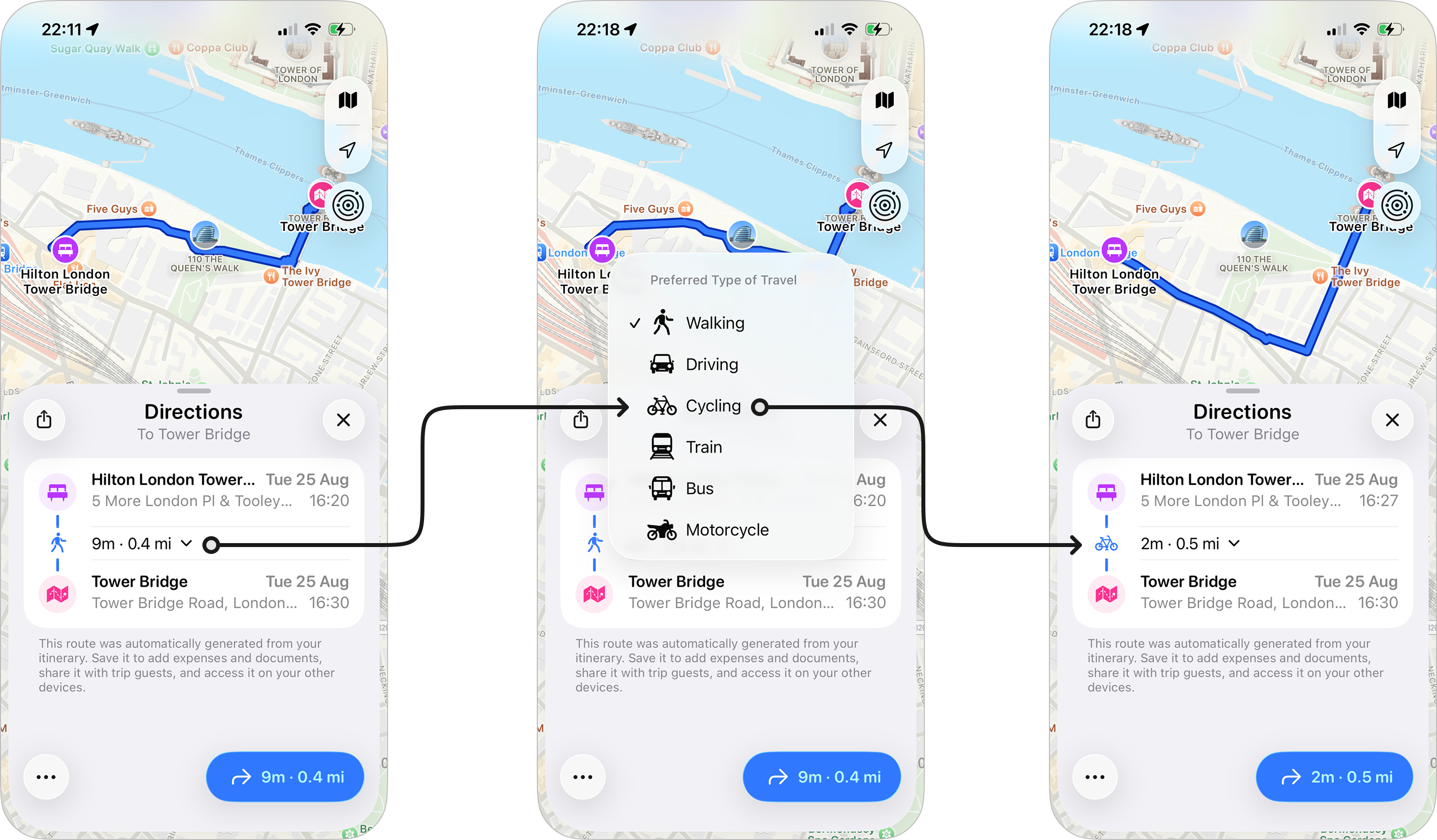
Please Note: Not all route options will be able to display actual route information, and this is currently limited to the data we receive from Apple Maps. This is something we're looking at options to improve upon in the future.
Hiding Route Suggestions
If you don't find a particular route suggestion helpful, you can tap on the three dots at the bottom left of the directions and tap Hide to hide this route suggestion from your itinerary.
Saving Route Suggestions
You can save any route suggestion as a regular route on your itinerary, just tap the three dots at the bottom-left and choose Save Route.
This can be helpful if you have already made plans, for example to travel from the airport to your first activity via a transfer service or other mode of transport and already have your timings arranged.
Enabling or Disabling Smart Routes
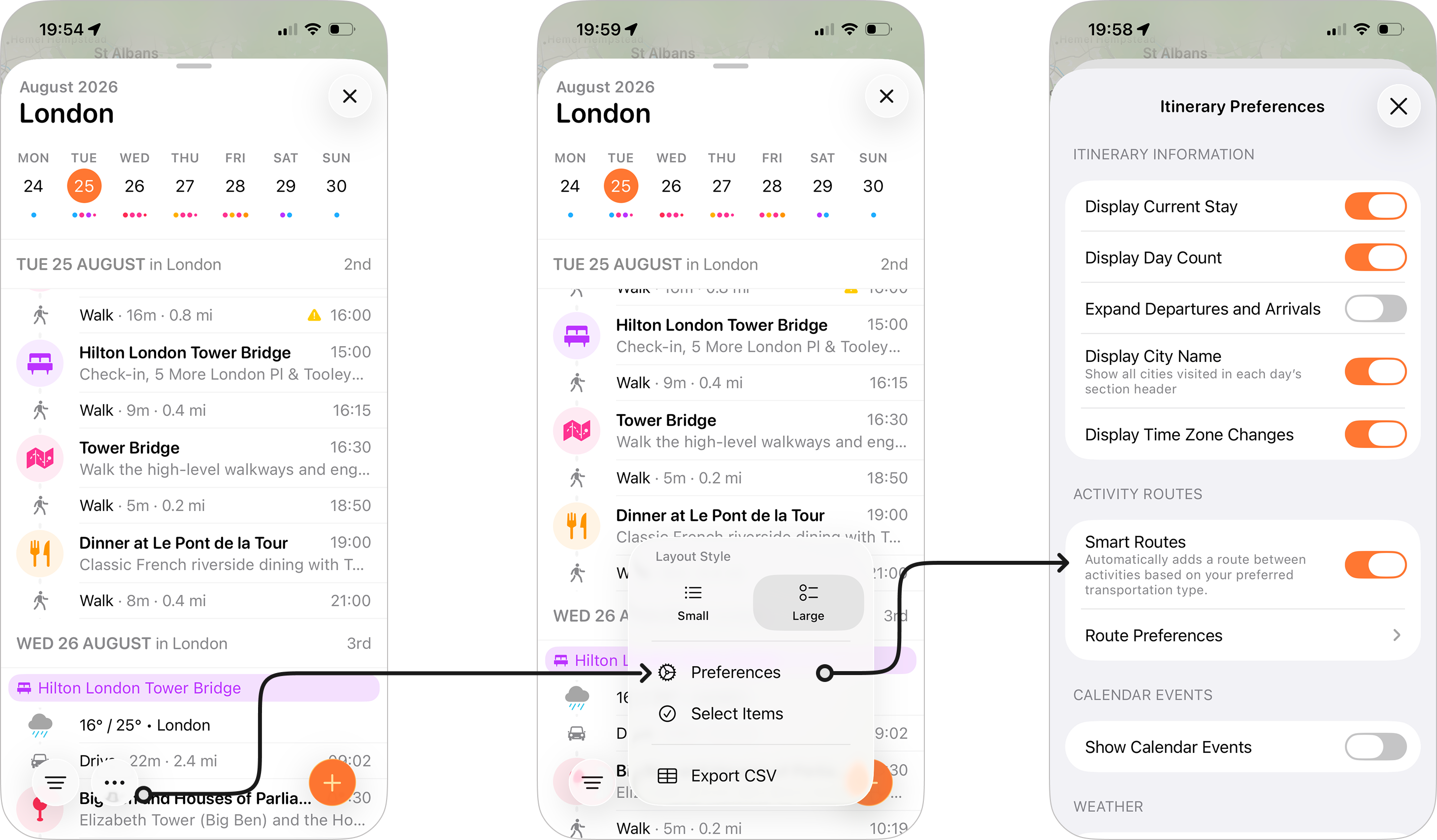
Route suggestions are enabled by default, but if you want to turn these off you can do so by going to your Itinerary Preferences:
- Open the trip in question
- Tap the Itinerary header
- Once in the itinerary view, tap the three dots at the bottom left of the itinerary.
- Tap Itinerary Preferences
- Check or uncheck Smart Routes under Activity Routes
Route Preferences
You can customize how Tripsy suggests routes between activities in your itinerary by going to Route Preferences under Activity Routes within your Itinerary Preferences. To get to the itinerary preferences:
- Make sure you're in a trip's itinerary
- Tap the more actions menu (three dots) and choose Preferences
- You'll then see Route Preferences
Preferred Type of Travel
When suggesting routes, Tripsy will use your preferred type of travel (Driving, Walking, Cycling, or Transit) to get you between your activities.
Type of Travel for Short Distances
By changing the Choose Distance slider, you can tell Tripsy to suggest a different travel option for routes under your chosen distance, you can choose which type of transport would be used by tapping the option next to Offer.
The distance scale is based on your chosen Distance Unit within Tripsy's settings, and the scale ranges from 0.2km (200m) to 5km or 0.1 miles to 3.1 miles depending on the unit chosen.
For example, if you want to have walking routes for anything under 1mile (1.61km) then you'd set the Choose Distance slider to 1 mile, and make sure that Offer is set to Walking.
Arrival Buffers for Smart Route Suggestions
Because the starting time of an event isn't always the time you should aim to arrive, such as a theatre performance or international flight, we've added arrival buffer options for different types of activity, you can choose how long before the start time of an activity the arrival time should be set for the following:
- International Flight with a default buffer of 3 hours.
- Domestic Flight (within the same country) with a default buffer of 2 hours.
- Other Transports (e.g. train journeys) with a default buffer of 30 minutes.
- Other Activities (e.g. restaurants) with no default buffer (0 minutes).
Frequently Asked Questions
- I have two activities nearby each other, why am I not seeing a smart route suggestion?
- If the two activities are within 200 meters (0.12 miles) of each other then Tripsy won't suggest a route.
- I'm based in China, I can't see any route suggestions outside of my country.
- This is due to limitations with Apple Maps in China, and whilst we're looking at solutions, we can't promise if or when we may have a full solution to this. We have a more detailed note about this here.