Using Activity & Trip Notes
Sometimes you'll want to record information that doesn't fit in a regular activity, or doesn't have a specific field within an activity, and this is where our notes feature comes in handy.
There's two types of notes within Tripsy:
- Activity Notes: These are associated with a particular activity, such as a flight or hotel reservation, and are limited to a single note per activity. These notes can also be added when forwarding emails and can be updated by our MCP server when optionally used with AI tools.
- Trip Notes: These are handled as trip documents and you can have multiple notes associated with any trip. These are very handy for text only information, maybe an emergency contact list, or other text only details.
Adding Notes to an Activity
To add a note to an activity, you can do the following:
- Open the activity in question from either the itinerary or from any of the activity lists within the trip.
- Tap on Write a note
- You'll now see the note editor appear and you can write your notes, or paste text from any other source, into the note.
- When you're done tap the checkmark at the top-right to save the note.
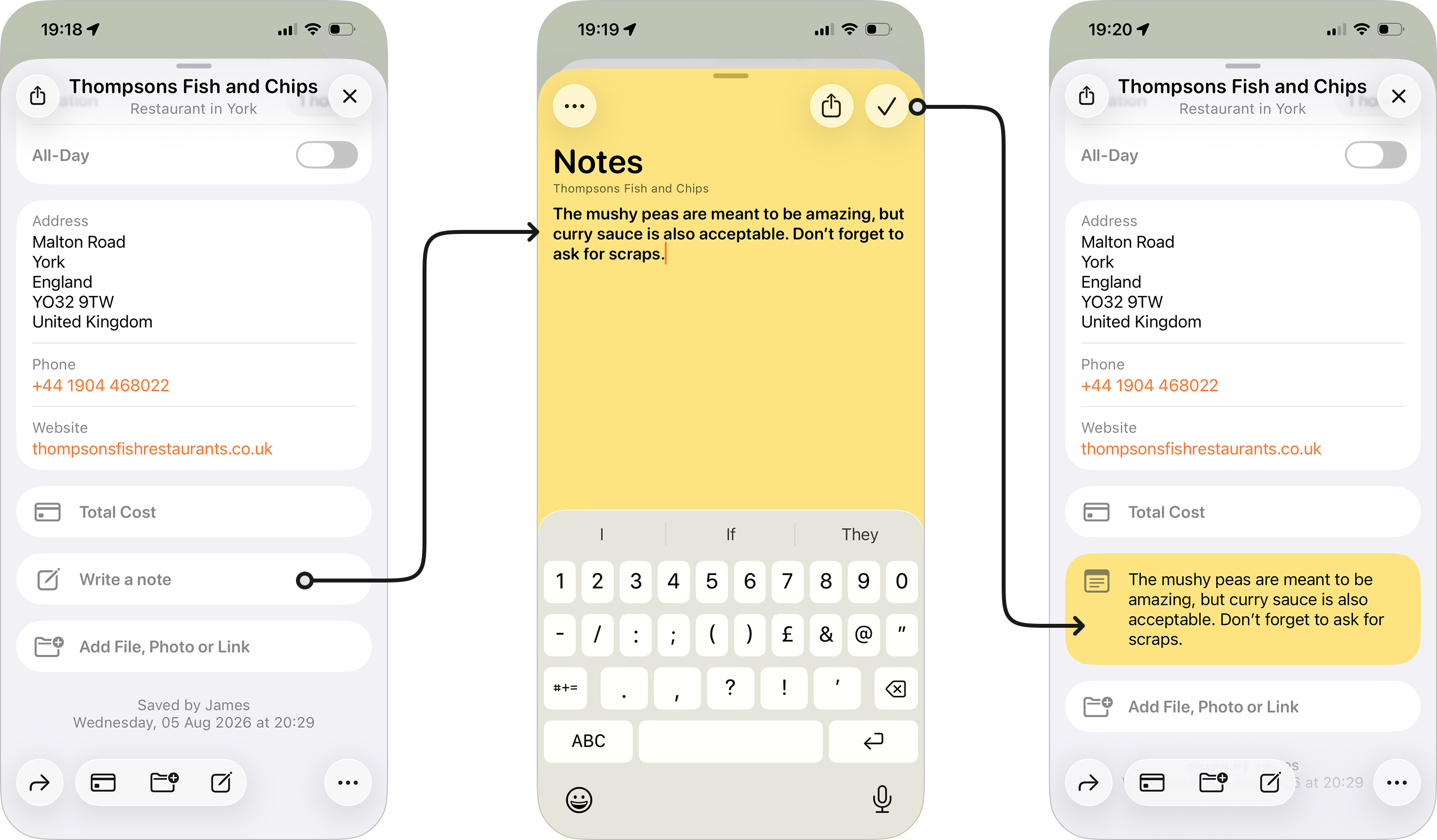
Once the note is saved, you'll see the note contents appear within the activity. You can tap on the note again to view or edit, repeating steps 3 and 4 above to save your changes.
Adding Notes to Your Trip Documents
To add a note to your trip:
- Open your trip
- Scroll down to the Documents widget and tap +
- You'll see the option for New Note
- Enter your note details and tap the checkmark do save the note
- The new note will take the first line of your entered text as its name and will appear in your documents list for the trip.
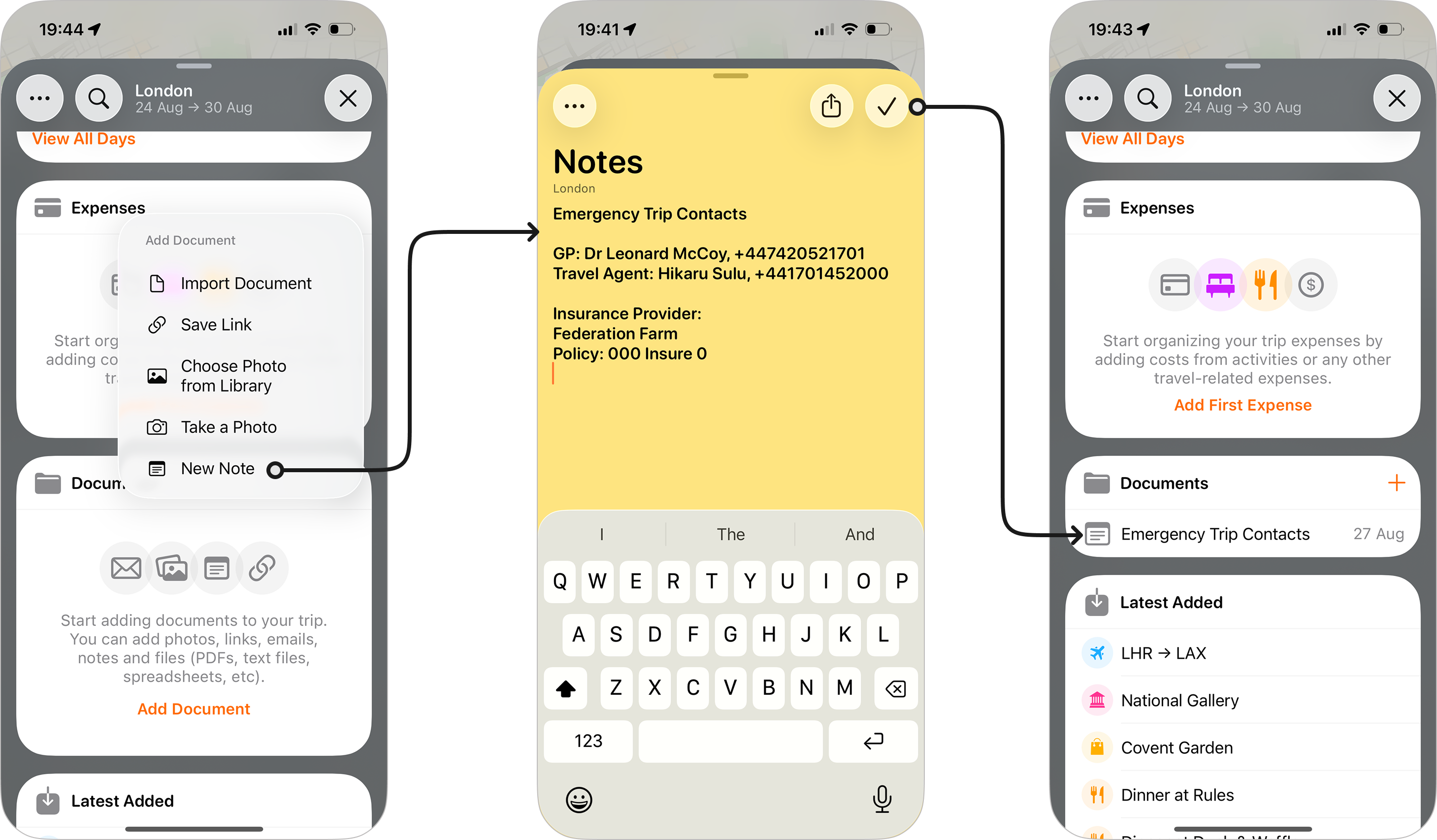
You can open the note by tapping on the title to return to the editor and make any changes you need.
Removing Notes
If you want to remove a note you can tap on the three dots at the top-left of the note, and choose Delete Note. This will remove the note by one of the following methods:
- For Activity Notes the note field for that activity will be cleared.
- For Trip Notes the note will be removed from your trip documents.
Moving Notes
Did you accidentally put the wrong notes against the wrong hotel, or add a trip note that really should be tied to your dinner reservation? Not to worry, as of Tripsy 3.9, we've made it possible to move notes between being trip notes and activity notes.
To move a note:
- Open the note in question
- Tap the more actions menu (the three dots at the top-left of the note)
- Tap Move
- You'll now be asked where to move the note to, select the appropriate option and you'll see a check mark appears to the right of your selection.
- Tap Move to move the note to its new location.
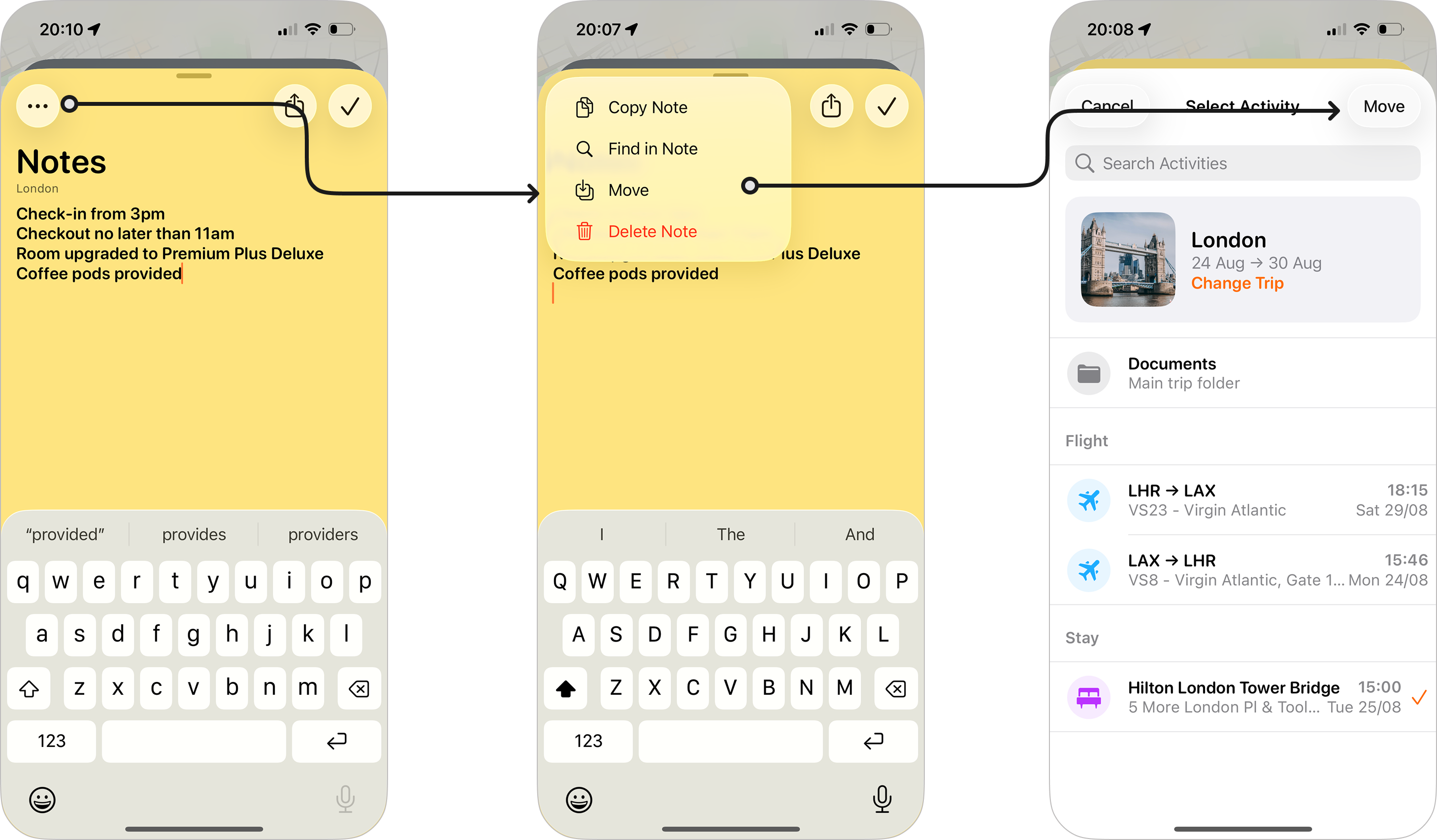
When choosing where to move a note, you'll see the options for:
- Documents: This puts the note into the trip's documents folder, and you'd use this if you were moving general notes that were recorded in an activity into the general trip notes.
- Activities: Only activities that do not already have a note saved within their details will be visible.
Finding Text Within a Note
If you need to find a particular phrase within a note, for example you may need to check the dress code for an event, you can now search the text within any note for that phrase. To do this
- Open the note
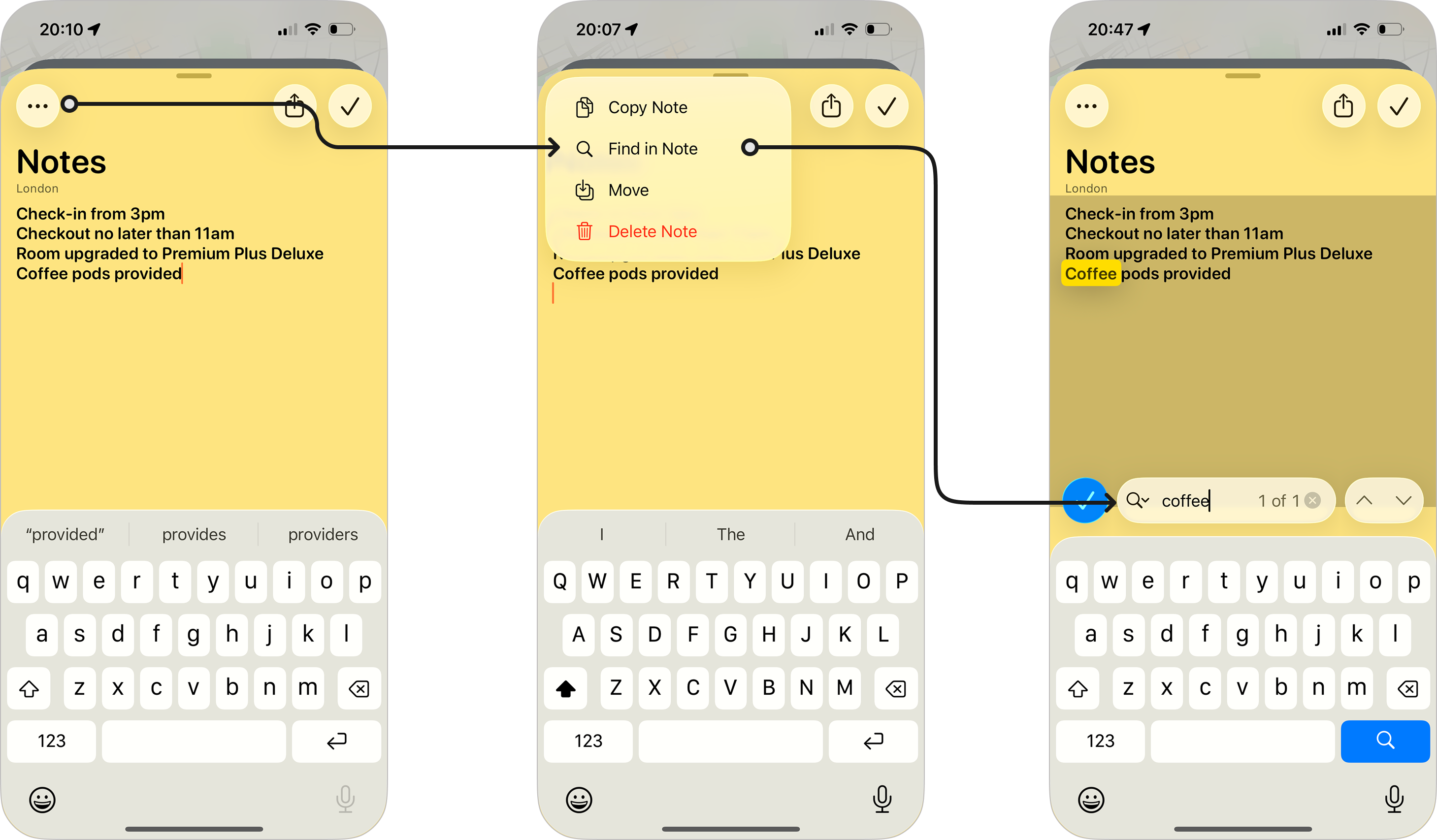
- Tap on the more actions menu
- Tap Find in Note
- You'll see a search field appear:
- On iPhone and iPad, this will appear directly above the keyboard
- On Mac, the search field will appear below the Note heading and above the note's content.
- As you enter text, the entered search term will be highlighted within the note's content.
- If multiple instances are found, you can use the up and down arrows at the right of the search box to move between the results.
- When you want to return to the normal note view, just tap the checkmark at the left of the search field.
Replacing Text in Notes
As well as being able to find text within your notes, you can now also do a find and replace.
- Mac: Check the Replace checkbox and you'll see a second text box for you to enter your replacement text. Tapping either Replace or All will let you replace just the selected instance, or all instances of the text you searched for.
- iPhone and iPad: Tap the search icon to the left of the search term and you can choose Replace, enter the replacement text and then tap Replace to replace each instance.
Other Note Actions
You also have some additional actions you can take with any note:
Share Note
Tapping the share icon at the top-right of the note will allow you to share the text of the note via the standard share-sheet, giving you the option to share the note content via your available messaging apps, email clients, or any other app that supports text.
This can be useful if you want to send your emergency contacts for a trip to someone who doesn't use Tripsy, for example.
Copy Note
Tapping the mote actions menu, and tapping Copy Note will copy the entire contents of the note to your clipboard, so you can then paste this into any other app or website as needed.
Frequently Asked Questions
- Can guests invited to a trip view and edit notes?
- If a guest is a 'Collaborator' on a trip, they can view and edit activity notes in the same way you can. If you've also given them 'Documents' permissions then they can also do the same for trip notes.
- If a guest is 'View Only' then they can only view the notes, but cannot use 'Find in Note'.