Smart Import
Tripsy PRO Feature: Smart Import requires an active subscription to Tripsy PRO or our Lifetime PRO purchase. You can find out more about Tripsy PRO here
If you're anything like us, you get your travel ideas from a range of different places online and in person.
Maybe you're visiting your best friend after they've moved home and they've sent you their Google Maps list of go-to fish and chip shops in their lovely seaside town, or you've seen an Instagram post for an event at your favorite bar, or you got handed a flyer for an upcoming event in the town you're visiting.
The question was always the same, how do you get those into your favorite travel app? With Tripsy 3.10, we've got the answer and now your travel inspiration breaks free of the slew of lists, social media stories, booking pages, PDF documents, and emails with Smart Import.
What Can Smart Import Do?
Smart Import uses our own AI server to let you easily import activities from the following:
- Reservations: Flight tickets, hotel confirmations, train journeys, cruises, and other travel bookings. You can even login to your booking site to pull this information without having to forward emails.
- Photos and screenshots: Booking details, restaurant recommendations, itineraries, and other readable travel information from things like WhatsApp conversations, a flyer you were given, or any other clear and readable screenshot or photo.
- Documents: This is great for things like travel itineraries from your personal travel planner, or the conference schedule for that all important off-site retreat. Tripsy can currently accept PDFs, plain text files, rich-text documents, HTML files, and saved emails in .eml format. We're looking to add more options here too!
- Maps: Grab shared place links, lists, and guides from Google Maps, Apple Maps, MapQuest and many others.
- Websites and social posts: Turn travel guides, blog posts, and accessible Instagram or TikTok content into ideas for your next trip. Tripsy can also read text in images from supported Instagram and TikTok posts.
- Pasted text: Copy travel plans, booking details, addresses, or lists of places from any form of text and have Tripsy turn these into activities for you.
This is very much just the start of our Smart Import journey, we hope to add even more options and ways to import as we continue to build this.
How to Use Smart Import
Starting a smart import session starts by going to add an activity to your trip just as you would for any other type of activity.
When you get to the activity search screen, you'll see the new Automate section with Smart Import being one of the two options.
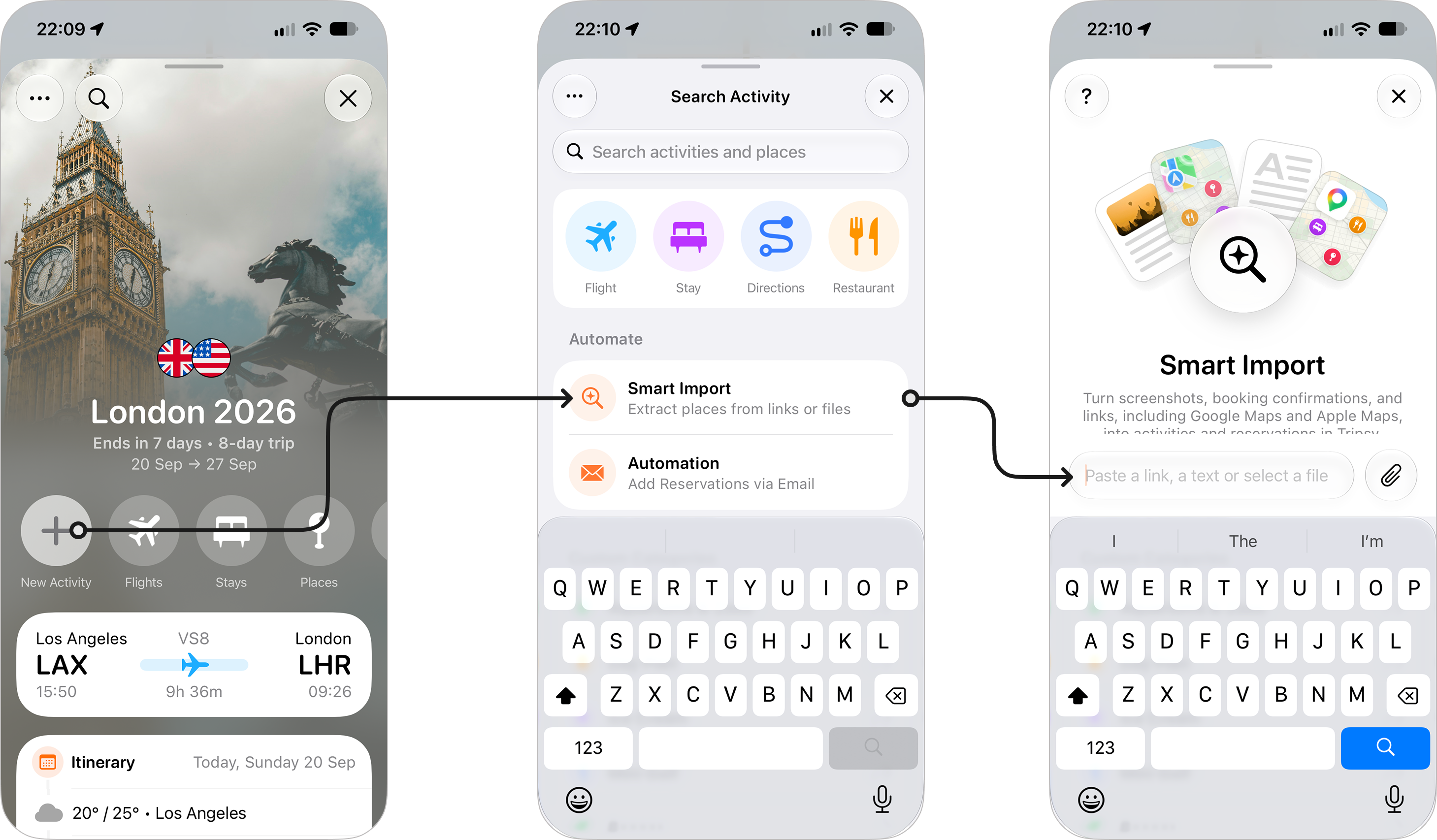
You'll then see both a text input field and an attachment icon.
- The text input is for pasting links or any freehand text - hit the search button to start the import process.
- The attachment icon lets you either choose a file from your device, choose a photo (or screenshot) from your photo library, or take a photo with your device's camera. Once you select a file, the import process will begin.
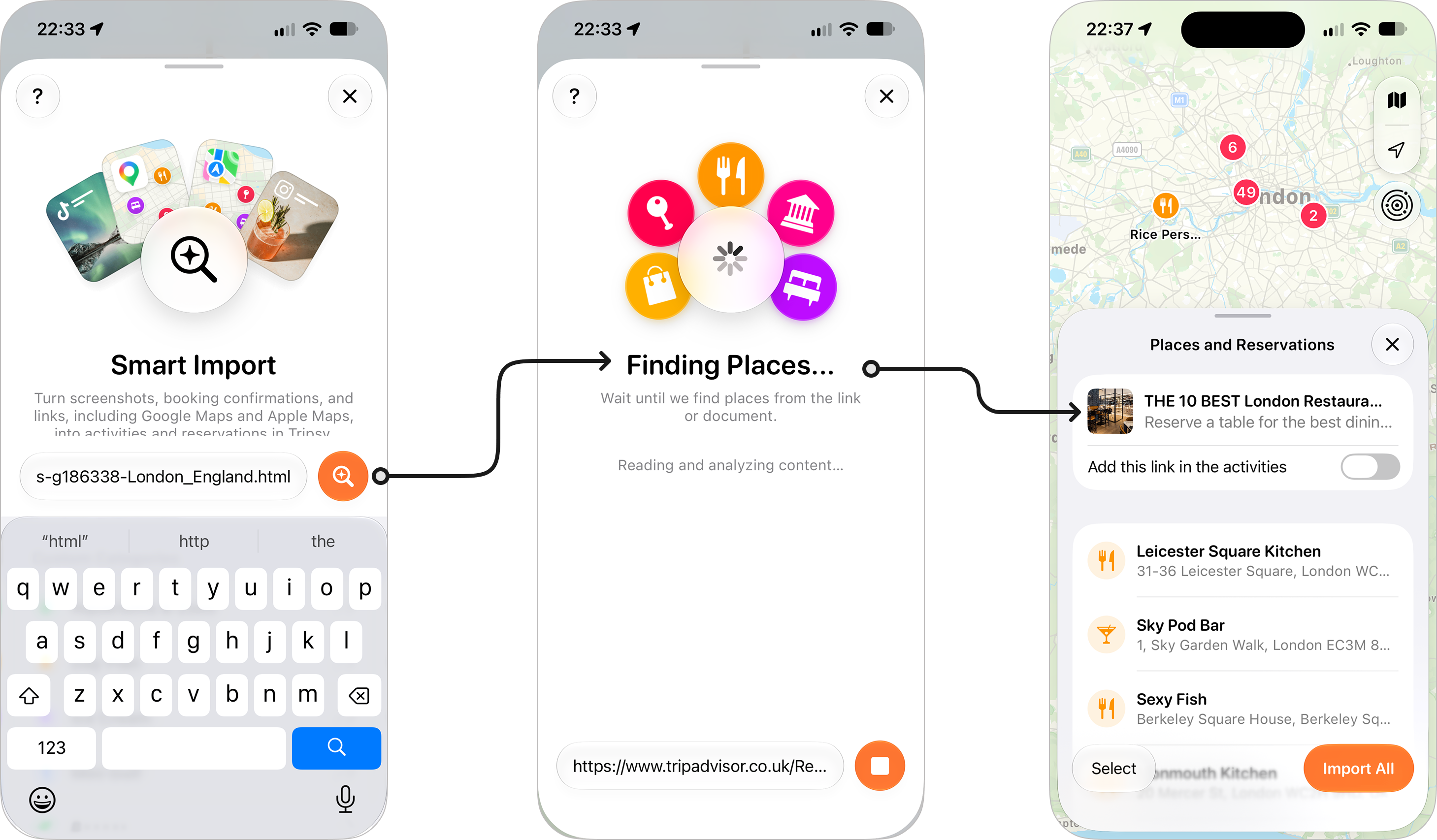
Once the import process starts, you'll see a progress spinner as Tripsy tries to find places and reservations. You can press the Stop button at the bottom right at any point to stop the process.
Depending on the type of document or link shared, the process may take some time, especially when there's multiple places to locate and identify.
Once finished, Tripsy will show you the list of places and reservations it was able to identify along with the link, or document, with pasted text being saved as part of the notes for the relevant activities.
Editing Details Before Import
If there's something not quite right about one of the discovered places, just tap on the place in question and then tap Edit Details. You can then make any corrections, but also add dates where only a place was presented, as well as adding notes and expenses.
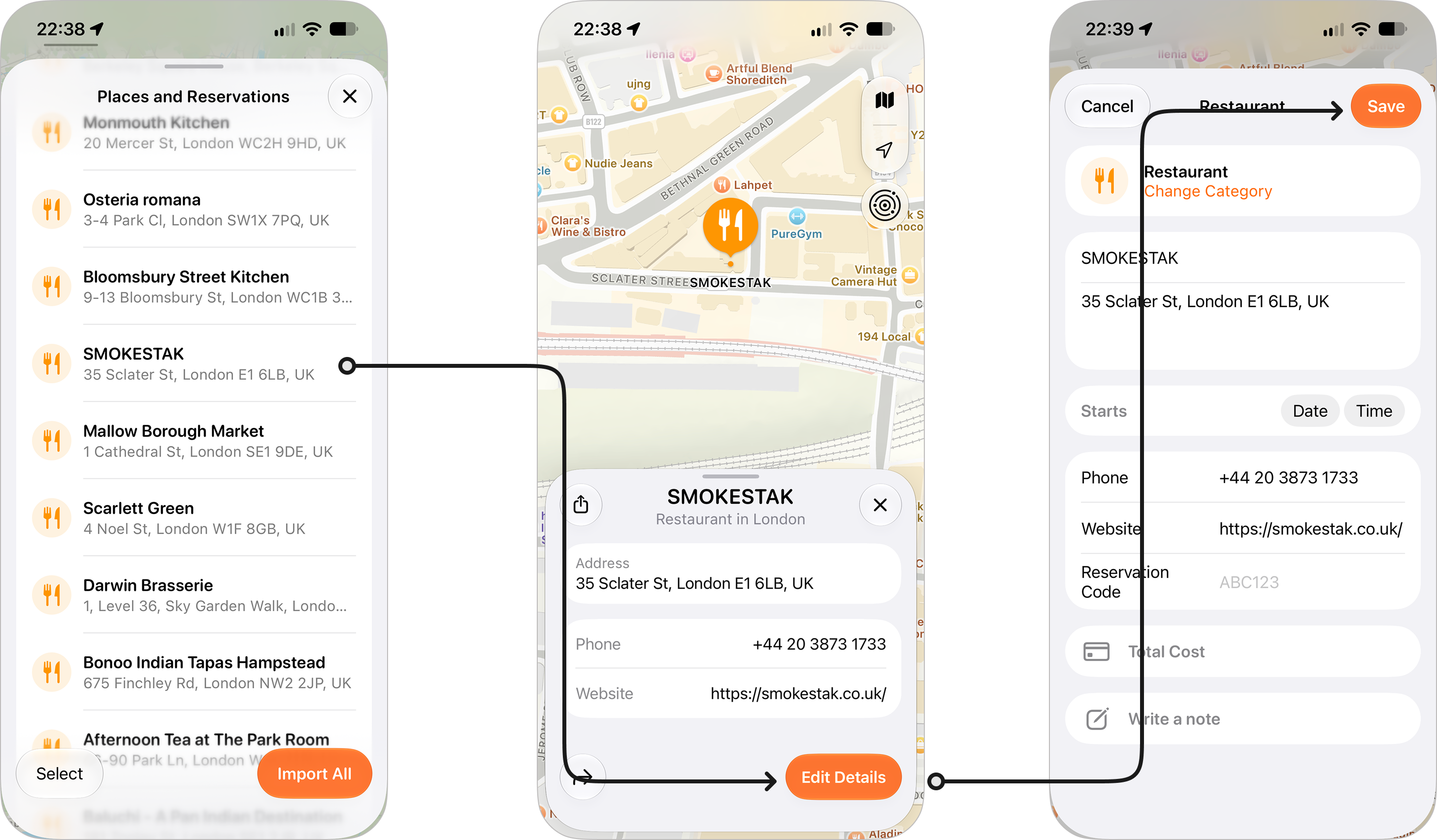
Those changes will be made and then imported into your trip once you've chosen what to import.
Choosing What to Import
By default, you'll see the Import All button, which will import everything from the discovered list.
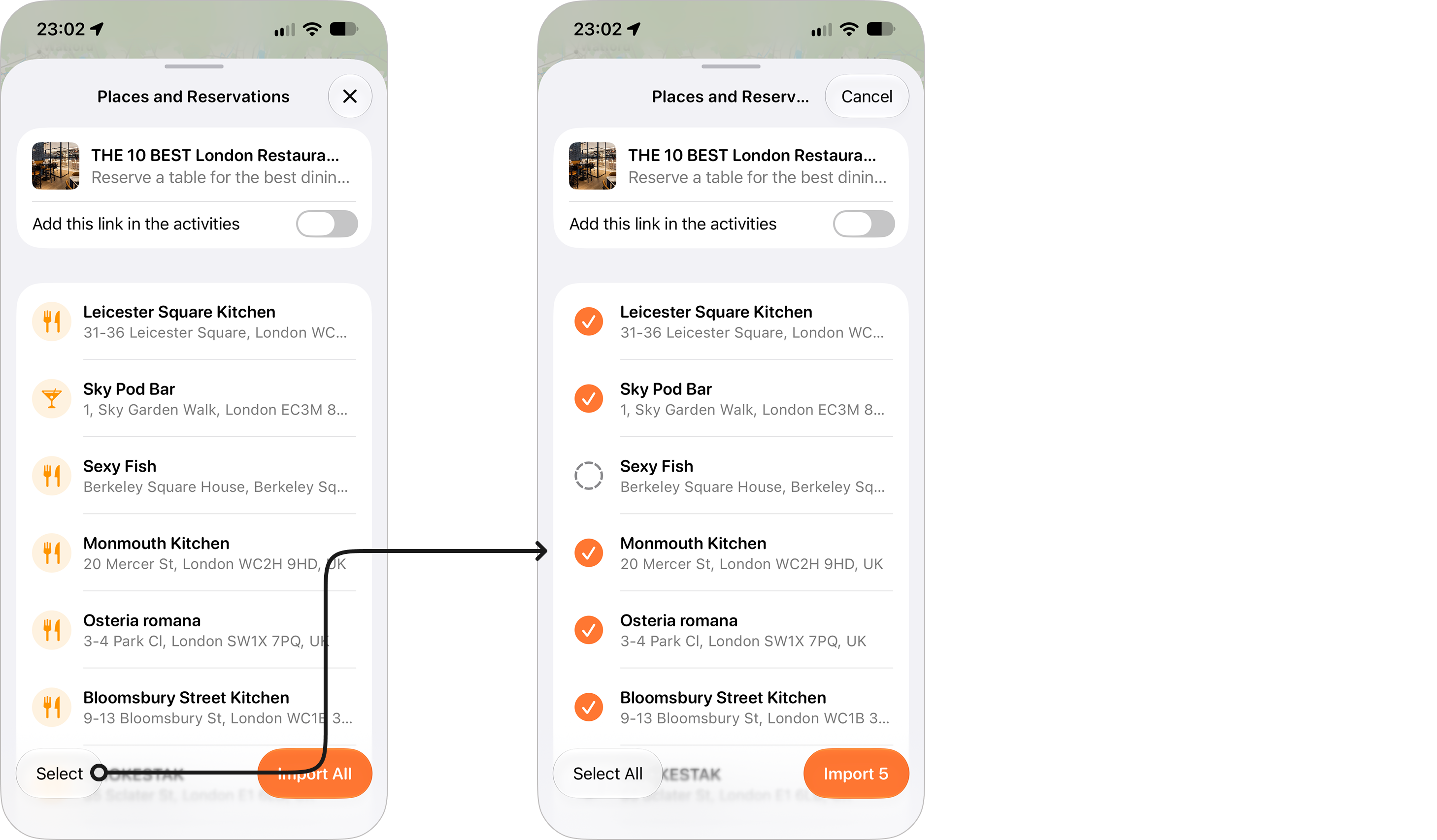
However, you can also select just the places and reservations that you want to turn into activities. To do this:
- Tap Select at the bottom left of the list.
- You'll see selection circles next to each place.
- Tap on the ones you want to import and you'll see a checkmark appear.
- The Import button will show how many items you'll be importing, for example for 5 activities this will show as Import 5.
Frequently Asked Questions
- How is the data from Smart Import processed?
- Processing: Smart Import uses Tripsy’s own processing systems and various AI models selected for each task to give you the best results.. These may include models hosted on infrastructure we manage, or ones provided by third parties, such as OpenAI and Anthropic (the company behind Claude). Depending on the task, relevant content may be sent to those providers for processing.
- Model training: Your Smart Import content is not used to train third-party AI models.
- Encryption: Your documents and extracted results are encrypted during transfer and when stored by our Smart Import service.
- Are my images and documents stored on your server?
- No, we use on-device OCR (Optical Character Recognition) to get the text from your images (e.g. screenshots, photos, documents) and it's that text alone that's processed by our AI model.
- Can I use the share sheet extension to trigger Smart Import?
- Not yet, but this is something we're looking into for a future update whilst still allowing the existing sharing options to be available.
- A link is failing to import, what should I do?
- We've tried to build in detection for things like consent prompts, but sometimes these won't load our in-app browser. If you find a link isn't parsing, try long-pressing the search button which will bring up the in-app browser and should let you clear any consent or cookie prompts. You can then tap Import this page.
- If that doesn't help, reach out to us via Settings > Talk to Us within Tripsy, making sure you include the link and any details of what you expected to be imported - we can then look at how this was processed and see what we can do to improve.